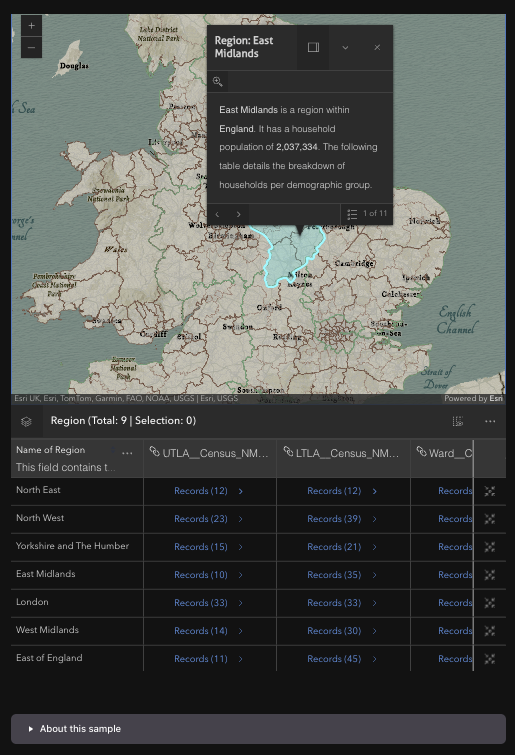
GeoBlazor Pro 4.5 introduced the FeatureTableWidget, an interactive, spreadsheet-style view of a feature layer's attributes that lives right alongside your map. We announced it in our GeoBlazor 4.6 release post; in this tutorial, we'll actually wire one up. All of the code below comes from two new samples you can run live: Feature Table and Highlight Features by Geometry. Let's take a look.
How Do You Add a FeatureTableWidget to Your Map?
Here's the markup from the Feature Table sample. The widget binds to a layer with its Layer parameter, and ContainerId tells it which element on the page to render into, so the table can live anywhere in your layout:
<MapView OnExtentChanged="OnExtentChanged" Class="map-view">
    <WebMap>
        <PortalItem PortalItemId="332e5d145bec4c2c860d65f7ca494b23" />
    </WebMap>
    <FeatureTableWidget Layer="@_regionLayer"
                        ContainerId="feature-table-container"
                        ShowLayerDropdown="true"
                        RelatedRecordsEnabled="true"
                        HideSelectionColumn="true">
        <ActionColumnConfig Label="Go to feature"
                            Icon="zoom-to-object"
                            Callback="GoToFeature" />
    </FeatureTableWidget>
</MapView>

<div id="feature-table-container"></div>
<MapView OnExtentChanged="OnExtentChanged" Class="map-view">
    <WebMap>
        <PortalItem PortalItemId="332e5d145bec4c2c860d65f7ca494b23" />
    </WebMap>
    <FeatureTableWidget Layer="@_regionLayer"
                        ContainerId="feature-table-container"
                        ShowLayerDropdown="true"
                        RelatedRecordsEnabled="true"
                        HideSelectionColumn="true">
        <ActionColumnConfig Label="Go to feature"
                            Icon="zoom-to-object"
                            Callback="GoToFeature" />
    </FeatureTableWidget>
</MapView>

<div id="feature-table-container"></div>
A few things worth noting here:
Layer: The table binds to aFeatureLayer, in this case one captured from the WebMap in anOnLayerViewCreatehandler. The widget connects reliably even when the layer is added to the map after the widget renders; that reliability fix for layer-bound widgets landed in Core 4.5.0 alongside the new table.ContainerId: Instead of floating over the map like most widgets, the table renders into the element with this ID. Here that's a<div>docked below theMapView.ShowLayerDropdown: Adds a dropdown that lets users switch the table between the WebMap's feature layers with no extra code.ActionColumnConfig: Adds a custom column of buttons. We'll use it to zoom the map to a row's feature.
How Do You Filter the Table to the Map Extent?
As you pan or zoom the map, OnExtentChanged passes the new extent to the table's SetFilterGeometry method, so visible rows always reflect the current map view. And the "Go to feature" action column works in the other direction, zooming the map to any row's feature on click:
private async Task OnExtentChanged(Extent extent)
{
    if (_featureTable is not null)
    {
        await _featureTable.SetFilterGeometry(extent);
    }
}

private async Task GoToFeature(object parameters)
{
    if (parameters is ActionColumnCallbackParams { Feature: { } feature } && _mapView is not null)
    {
        await _mapView.GoTo([feature]);
    }
}
private async Task OnExtentChanged(Extent extent)
{
    if (_featureTable is not null)
    {
        await _featureTable.SetFilterGeometry(extent);
    }
}

private async Task GoToFeature(object parameters)
{
    if (parameters is ActionColumnCallbackParams { Feature: { } feature } && _mapView is not null)
    {
        await _mapView.GoTo([feature]);
    }
}
That's the whole round trip: the map filters the table, and the table navigates the map.
How Do You Work with Related Records?
Setting RelatedRecordsEnabled="true" lets users expand a row's related records directly in the table. The Feature Table sample goes a step further with relationship columns: for every RelationshipElement in the layer's AttributeTableTemplate, it looks up the matching relationship by ID and relabels the column to "Related to: {prefix}", which you can see in the record-count columns in the image at the top of this post. When a related table expands, a reactive waiter (registered with AddReactiveWaiter) installs a matching zoom-to-feature action column on the related table too. The full implementation is in the sample source on GitHub, and it's a great reference if you're building an app with related records and want the table and map to stay in sync.
How Do You Highlight Features with a Drawn Geometry?
The Highlight Features by Geometry sample shows a National Park Service points-of-interest layer over a 2D Albers Equal Area map of the United States, with a FeatureTableWidget docked below. Draw a rectangle with the SketchWidget, and the sample queries the layer view for intersecting features, blurs and dims the rest using a FeatureEffect, and highlights the matching rows in the table.
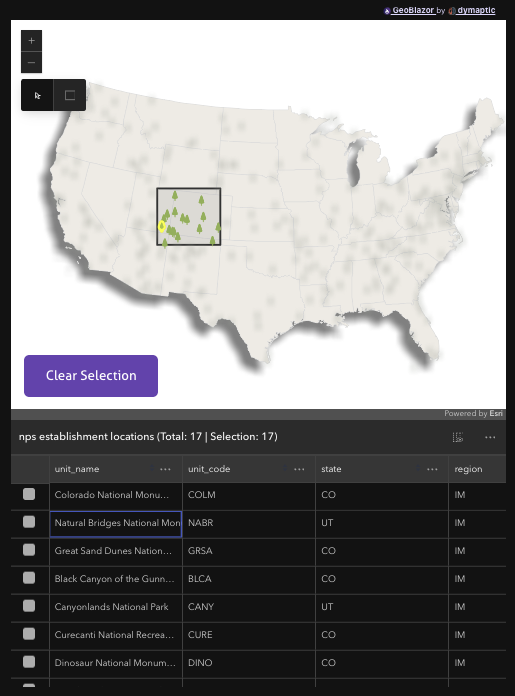
The core of the selection logic queries the FeatureLayerView with the drawn geometry, collects the matching ObjectIds, and then updates the table and the layer view together:
private async Task SelectFeatures(Geometry geometry)
{
    FeatureSet? result = await _layerView!.QueryFeatures(new Query(Geometry: geometry));

    if (result?.Features is null || !result.Features.Any())
    {
        return;
    }

    // collect the ObjectIds from the query result into _selectedObjectIds, then...

    // filter the table to the drawn area and highlight the matching rows
    await _featureTable!.SetFilterGeometry(geometry);
    string[] highlightIds = _selectedObjectIds.Select(id => id.ToString()).ToArray();
    await _featureTable.SetHighlightIds(highlightIds);

    // blur and dim every feature that wasn't selected
    var featureEffect = new FeatureEffect(
        filter: new FeatureFilter(objectIds: _selectedObjectIds.ToArray()),
        excludedEffect: [new Effect("blur(5px) grayscale(90%) opacity(40%)")]);

    await _layerView.SetFeatureEffect(featureEffect);
}
private async Task SelectFeatures(Geometry geometry)
{
    FeatureSet? result = await _layerView!.QueryFeatures(new Query(Geometry: geometry));

    if (result?.Features is null || !result.Features.Any())
    {
        return;
    }

    // collect the ObjectIds from the query result into _selectedObjectIds, then...

    // filter the table to the drawn area and highlight the matching rows
    await _featureTable!.SetFilterGeometry(geometry);
    string[] highlightIds = _selectedObjectIds.Select(id => id.ToString()).ToArray();
    await _featureTable.SetHighlightIds(highlightIds);

    // blur and dim every feature that wasn't selected
    var featureEffect = new FeatureEffect(
        filter: new FeatureFilter(objectIds: _selectedObjectIds.ToArray()),
        excludedEffect: [new Effect("blur(5px) grayscale(90%) opacity(40%)")]);

    await _layerView.SetFeatureEffect(featureEffect);
}
The sample also synchronizes hover highlights in the other direction. When the pointer moves over a table row, the matching feature lights up on the map:
private async Task OnCellPointerOver(FeatureTableCellPointeroverEvent pointeroverEvent)
{
    if (_onRowOverHighlight is not null)
    {
        await _onRowOverHighlight.Remove();
    }

    if (pointeroverEvent.Feature is null)
    {
        return;
    }

    _onRowOverHighlight = await _layerView!.Highlight(pointeroverEvent.Feature!);
}
private async Task OnCellPointerOver(FeatureTableCellPointeroverEvent pointeroverEvent)
{
    if (_onRowOverHighlight is not null)
    {
        await _onRowOverHighlight.Remove();
    }

    if (pointeroverEvent.Feature is null)
    {
        return;
    }

    _onRowOverHighlight = await _layerView!.Highlight(pointeroverEvent.Feature!);
}
This is the pattern to reach for when you want users to make spatial selections and immediately see the results as both map highlights and a filterable attribute list, with no custom grid component required.
When Should You Use the FeatureTableWidget?
The FeatureTableWidget is a great fit when:
- Your users need to browse, sort, or search a layer's attributes alongside the map, rather than one popup at a time
- You want spatial selections (drawn shapes, extent changes) reflected immediately in a tabular view
- Your data has related records that users need to drill into
- Users need to export a selection to CSV without you building that pipeline yourself
If you only need to show a handful of attributes for a clicked feature, a PopupTemplate is still the lighter-weight choice. But the moment your users start asking for "the data behind the map," the FeatureTableWidget gets you there without writing a custom grid.
Try It Yourself
Both samples are live on samples.geoblazor.com, with full source in the GeoBlazor-Samples repository:
To use the FeatureTableWidget in your own project, you'll need GeoBlazor Pro 4.5.1 alongside GeoBlazor Core 4.5.0.
Frequently Asked Questions
Can the FeatureTableWidget stay in sync with the map?
Yes. You can pass the current map extent to SetFilterGeometry so the table only shows features in view, highlight table rows from a spatial query with SetHighlightIds, and add custom action columns that zoom the map to a row's feature. Hovering a table row can also drive highlights on the map.
Do I need GeoBlazor Pro to use the FeatureTableWidget?
Yes. The FeatureTableWidget ships with GeoBlazor Pro 4.5, the commercial extension package, alongside GeoBlazor Core 4.5.0.
Can I customize the columns and actions in the FeatureTableWidget?
Yes. You can add custom action columns with ActionColumnConfig, hide the selection column with HideSelectionColumn, show a layer-switching dropdown with ShowLayerDropdown, enable related records with RelatedRecordsEnabled, and relabel relationship columns through the layer's AttributeTableTemplate. The widget also supports column sorting with multi-column sort priority.
Does the FeatureTableWidget work with WebMaps?
Yes. The Feature Table sample binds the widget to a layer from a WebMap loaded by portal item ID, and the ShowLayerDropdown option lets users switch between the WebMap's feature layers without any extra code.